Navigating gemRetailer
You navigate gemRetailer using the Header and Menu bar. These navigation options are available from all pages in the portal.
NOTE: Visibility to certain features or options may depend upon your role in gemRetailer.
Header
The gemRetailer Header contains dropdown menus that provide access to important information.

The left side of the gemRetailer Header displays the New Mexico Lottery and gemRetailer logos. Click the [New Mexico Lottery] logo to open the New Mexico Lottery website. Click the [gemRetailer] logo to open the Dashboard Page.
The right side of the Header contains:
| Element | Description |
|---|---|
|
|
The Select a Chain menu allows you to select a specific chain, or you can manually type the number and/or name of the chain you want to work with. NOTE: This option is only accessible to Lottery users. |

|
The Search for a Retailer menu and search field allows you to select a retailer, or you can manually type the number and/or name of the retailer you want to work with. NOTE: This option is only accessible to Corporate and Lottery users. |

|
The [Clear Selection] button allows you to reset the other fields. |

|
The View Alerts menu allows you to view important system related information, such as a filled form response requiring approval. A badge displays on the top right of the icon when you have unread alerts. From the menu, you can click the View All Alerts link to view all alerts, view unviewed alerts, or search for alerts. |

|
The Profile menu provides links to your profile, change password, and log out. For more information, see Profile Menu. |

Menu Bar
gemRetailer includes many pages organized by functional area. These areas match the menus shown on the Menu bar. The Menu bar content changes based on the user role and user type. The sections below describe each menu area.
| Element | Description |
|---|---|
|
|
The [Dashboard] button displays the gemRetailer Dashboard from anywhere within the gemRetailer application. |
|
|
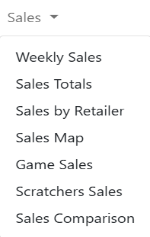
The Sales menu pages are always available. For Corporate and Lottery users, Sales menu pages do not show information until a chain and/or retailer is selected. NOTE: The Sales by Retailer page is only accessible to Corporate and Lottery users.
|
|
|
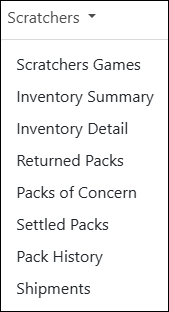
The Scratchers menu pages are always available. For Corporate and Lottery users, Scratchers menu pages do not show information until a chain and/or retailer is selected. NOTE: The Sales by Retailer page is only accessible to Corporate and Lottery users.
|
|
|
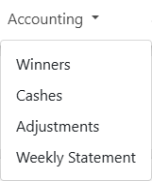
The Accounting menu pages are always available.
When you navigate to any of the Accounting pages, the page displays information for the location. |
|
|
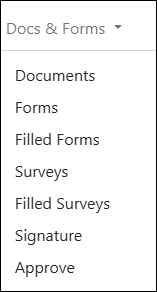
The Docs & Forms menu pages are always available. NOTE: The Approve page is only accessible to Lottery users. |
|
|
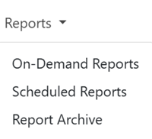
The Reports menu is always available. However, the On-Demand Reports page requires the Lottery user to select a chain and/or a retailer location. |
|
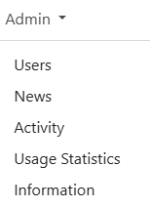
The Admin menu is always available. However, not all pages are displayed in the menu for all users.
NOTE: IT Developer users have access to the Configuration page via the Admin menu. |
|
|
The Search field allows you to search across the application for relevant information. You can search for pages, reports, news items, etc. Enter the appropriate search term in the field and click [Search]. |