Profile Menu
Once you log in to gemRetailer, the Profile menu displays in the upper-right corner of the page next to your username. The example shown may differ from your page, which displays your unique username.

Click your username to see the Profile menu.
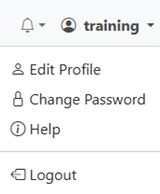
Edit Profile
To edit your profile:
- Click [Edit Profile] in the Profile menu. The Edit Profile page displays.
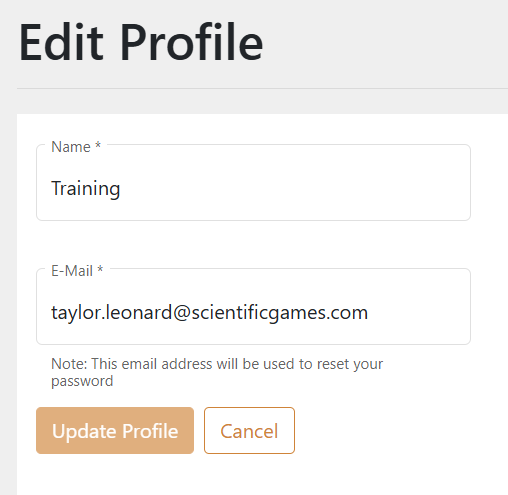
- Update your name and/or email address, and click [Update Profile].
Change Password
To change your password:
- Click [Change Password] in the Profile menu. The Change Password page displays.
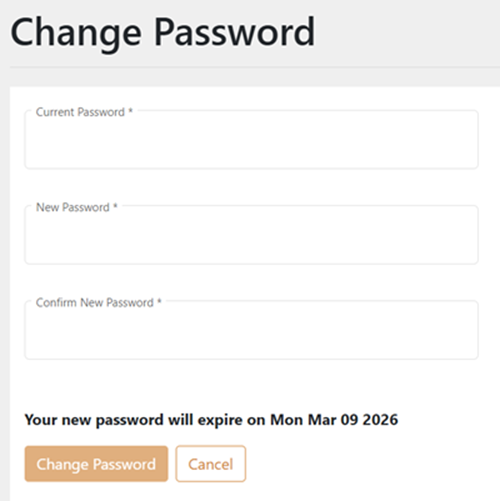
- Enter your current password in Current Password. (If your password was reset by the password administrator, enter the default password assigned by the password administrator.)
- Enter your new password in New Password. It must meet the following conditions:
- At least 12 characters long.
- Is not the same as any of your last 25 passwords.
- Contain at least 3 of the following types of characters:
- Letters (A, b, c, ...)
- Numbers (0, 1, 2, ...)
- Special characters (anything else)
- Enter the new password in Confirm New Password exactly as entered in New Password.
- Click the [Change Password] button. If the system displays errors, correct the errors and try again.