Users
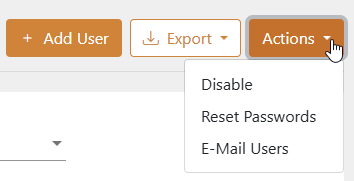
The Admin > Users page displays a table of users in the system. You can select one or more users using the checkbox next to each name, then use the [Actions] button to perform tasks such as disabling users, resetting passwords, or emailing users.
 Admin > Users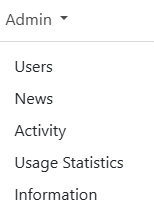
NOTE: Some actions and features are only available to users with certain role types.
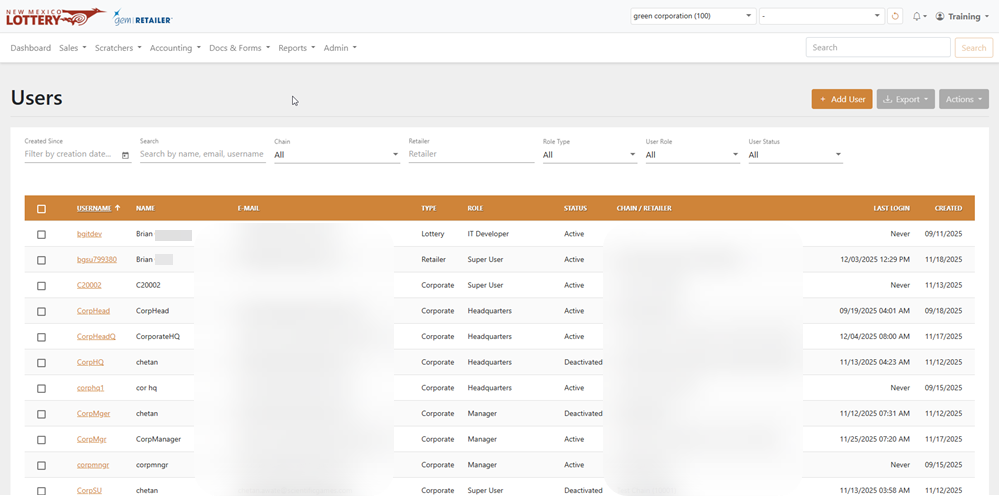
Search for a User
To search for a user, use the available fields, date fields, and dropdown menus to filter the data in the results table.
User Management
To disable a user, reset the password, or email a user, select the user (or users), click the [Actions] button, and then perform an action.
Add a New User
To add a new user:
- Click the [Add User] button on the right-hand side. The Add User page displays.
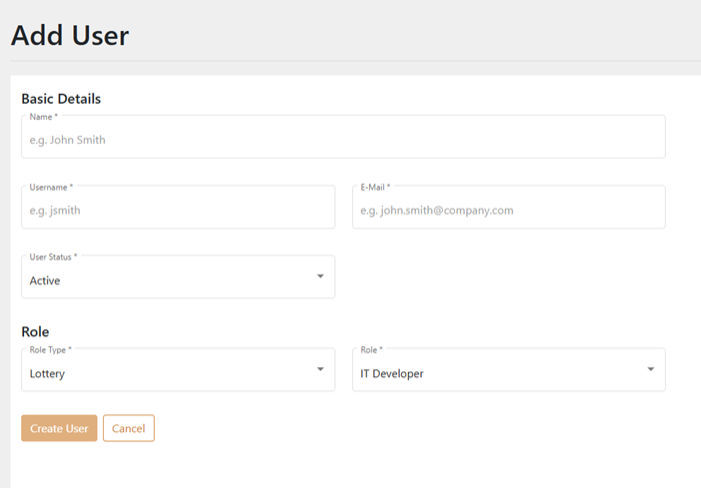
- Use the fields and dropdown menus to define the user. All fields with an asterisk are required.
- Click [Create User] to add the new user.
Edit a User
To edit a user:
- Click the name of the user in the results table.
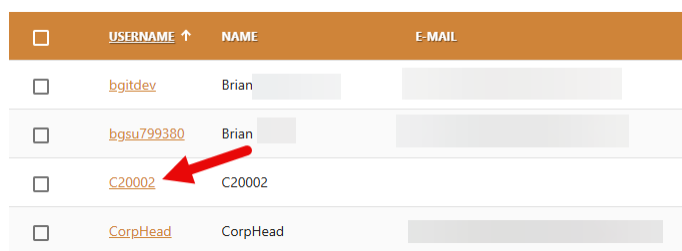
- Use the fields and dropdown menus to make the desired edits.
- Click [Save User].
Export a User
To export, select the items to export, click [Export] on the right-hand side, and choose the file format. You can also check the orange checkbox at the top of the results to select all the items.