Scheduled Reports
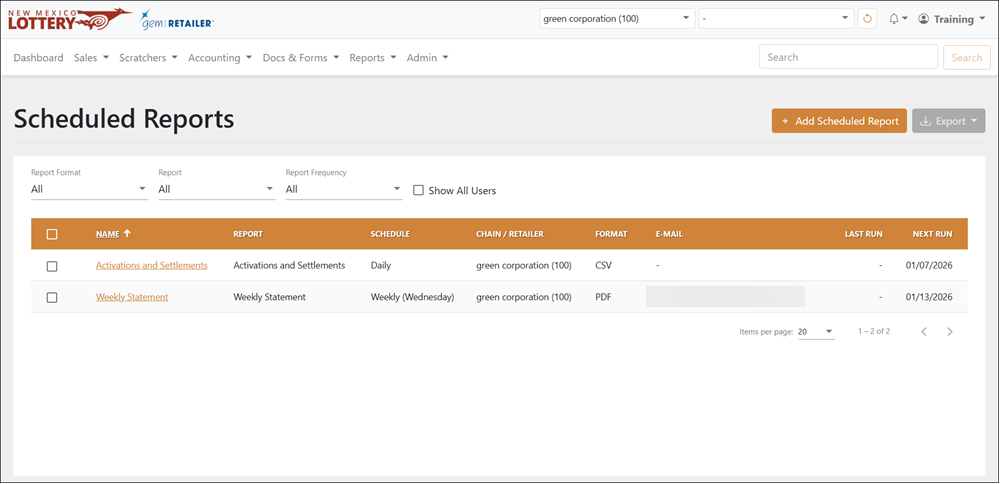
The Reports > Scheduled Reports page displays a table of scheduled reports created in the system. The list is pre-filtered based on your role type and access.
 Reports > Scheduled Reports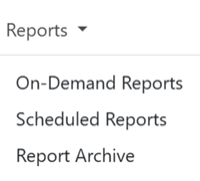
NOTE: To edit or delete a report, click the report name in the table to open the Report Detail page.
Search for a Report
To search for a report, use the available dropdown menus to filter the data in the results table. Check the Show All Users checkbox to show scheduled reports for all users.
Add a New Scheduled Report
To add a new scheduled report:
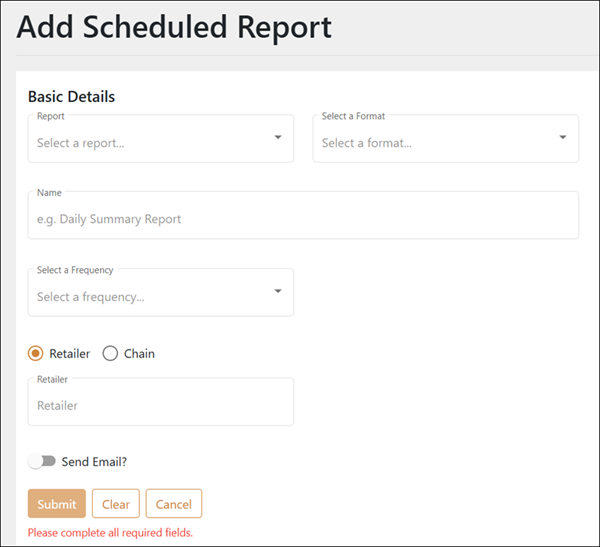
- Click the [Add Scheduled Report] button on the right-hand side. The Add Scheduled Report page displays.
-
Use the fields and dropdown menus to enter the report information. All fields are required.
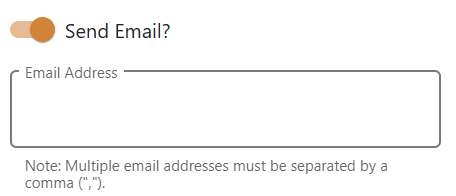
- Optional: Turn on Send Email? to enter one or more email addresses to receive the scheduled report.
- Click [Submit] to create the report.
Edit a Scheduled Report
NOTE: You can only edit or remove scheduled reports that you created.
To edit a scheduled report:
- Click the name of the report in the results table.
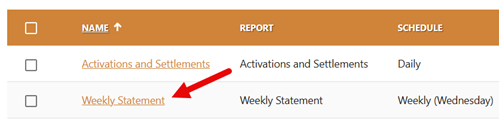
- The Edit Report page displays. Use the fields and dropdown menus to make the desired edits.
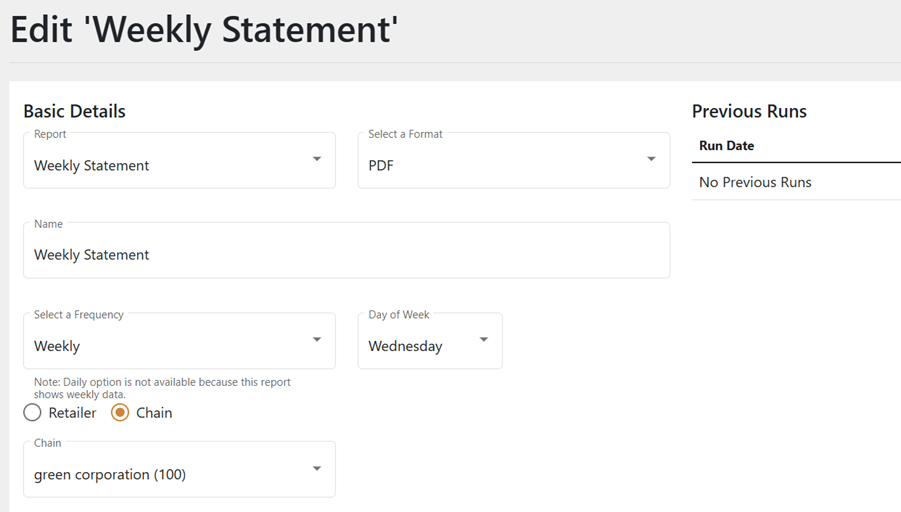
- Click [Submit].
- Optional: To remove a scheduled report, click the [Remove] button in the upper right-hand corner.
Export a Scheduled Report
To export, select the items to export, click [Export] on the right-hand side, and choose the file format. You can also check the orange checkbox at the top of the results to select all the items.