On-Demand Reports
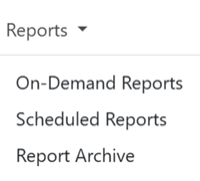
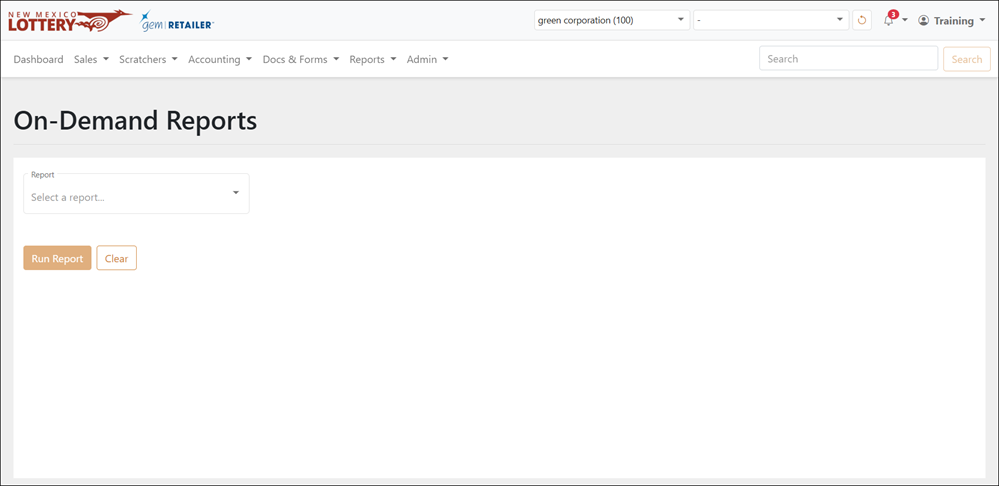
The Reports > On-Demand Reports page displays a list of reports. Some reports require you to enter additional information to refine the results. After you run a report, the results display.
Report Content
| Independent Retailers |
Reports contain information for your retailer location. |
| Corporate Users Assigned to a Single Location |
Reports contain information for the location as allowed by your user role type. You cannot run a report for another location, nor can you run a chain-level report. |
| Corporate Users Assigned to Multiple Locations |
Reports contain information for the retailer locations selected in the Retailer dropdown menu.
|
| Lottery Users |
Reports contain information for the chain and retailer location(s) you select.
|
NOTE: For questions about your authorized locations in the gemRetailer portal, contact your chain or location user administrator.
Create an On-Demand Report
To create an on-demand report:
- Select a report from the Reports dropdown menu. For a detailed description of each report, see Report Details below.
- Some reports may require a date range. If necessary, select or type a Start Date and an End Date. Additionally, many reports require a chain and retailer. You can search for a chain from the Chain dropdown menu, and you can select All for the Retailer dropdown menu to include all retailers.
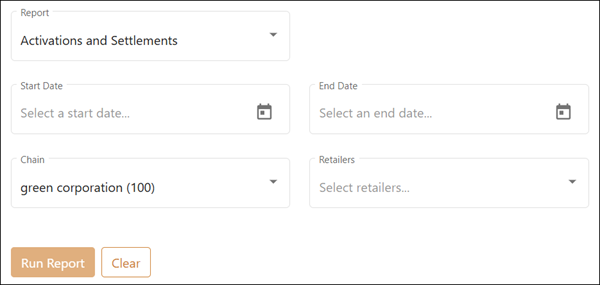
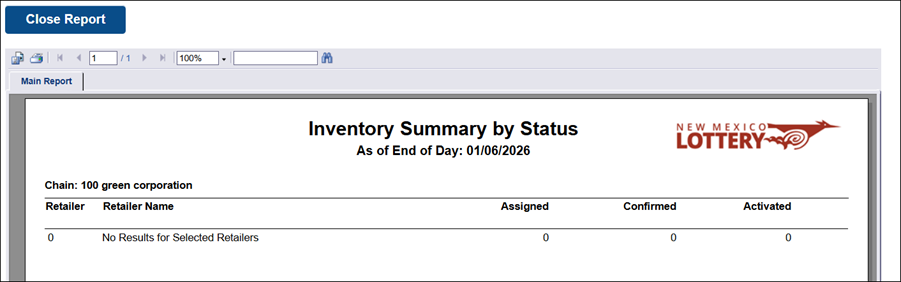
- When finished, click [Run Report] and the report will load in a new tab in the browser for viewing. What appears below is an example of an Inventory Summary by Status report.
Export an On-Demand Report
To export an on-demand report:
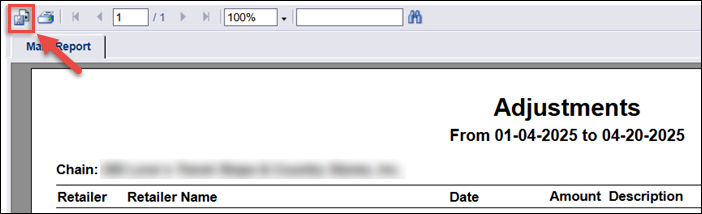
- After your desired on-demand report, click the [Export] button in the upper-left corner.
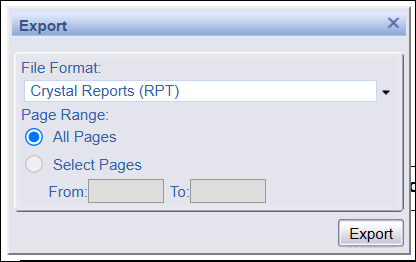
- The Export popup displays. Choose the file format, page ranges, and click [Export].
- When finished, click [Close Report] in the upper-left corner.
- Optional: To print the report, click the [Print] button, and the Print to PDF popup displays. The report will export as a PDF, allowing you to print from your default PDF reader (e.g., Google Chrome, Adobe Reader).
Report Details
Click each report name below to view a detailed description.
-
 13 Week Net Sales
13 Week Net Sales
This report displays net sales totals for each authorized retailer location for the last 13 weeks. You can select multiple retailer locations.
Some columns or rows that may appear in the report include:
- Retailer Identification Number
- Retailer Name
- 13 Week Total
- Average Weekly Total
A summary row at the end of the report displays the overall 13-week net sales total and average weekly net sales.
-
Activations and Settlements
Activations and Settlements
This report contains a listing of all packs activated or settled for the selected retailers and time period.
Some columns or rows that may appear in the report include:
- Retailer Identification Number
- Retailer Name
- Game
- Game Name
- Pack
- Status
- Status Date
Report data is sorted by location number if the report contains multiple locations.
-
Active Packs
Active Packs
This report lists activated packs for the selected retailer locations, including pack number, activation date, and pack value.
Some columns or rows that may appear in the report include:
- Retailer Identification Number
- Retailer Name
- Game
- Game Name
- Pack
- Date Activated
- Pack Value
Report data is sorted by location number if the report contains multiple locations.
-
Adjustments
Adjustments
This report contains adjustment amounts and descriptions for each retailer location selected for the time period defined by the Start Date and End Date. Only authorized retailer locations display in the report, and you can select multiple locations.
Some columns or rows that may appear in the report include:
- Retailer Identification Number
- Retailer Name
- Date
- Amount
- Description
Report data is sorted by location number if the report contains multiple locations.
-
Inventory Details
Inventory Details
This report contains a list of pack details for selected retailer locations, including status, status change date, days in status, and pack value.
Some columns or rows that may appear in the report include:
- Retailer Identification Number
- Retailer Name
- Game
- Game Name
- Pack
- Status
- Status Date
- Days in Status
- Price Point
- Percent Cashed
- Pack Value
Report data is sorted by location number if the report contains multiple locations.
-
Inventory History
Inventory History
This report contains game pack status history, including in-transit, received, activated, settled, and return details, for each pack by retailer location and date range.
Some columns or rows that may appear in the report include:
- Retailer Identification Number
- Retailer Name
- Game Number
- Game Name
- Pack
- In Transit
- Activated
- Settled
- Returned
Report data is sorted by location number if the report contains multiple locations.
-
Inventory Summary by Game
Inventory Summary By Game
This report contains summarized pack status totals for each Scratcher game, including In-Transit, Received, Activated, and Settled. Each Scratchers game is listed with game number, name, ticket price and pack size. The report is further grouped and totaled by user selected retailer locations and overall report totals.
Some columns or rows that may appear in the report include:
- Retailer Identification Number
- Retailer Name
- Game Number
- Game Name
- Pack Size
- In Transit
- Received
- Activated
- Settled
Report data is sorted by location number if the report contains multiple locations.
-
Inventory Summary by Status
Inventory Summary by Status
This report lists the total number of packs by status—In-Transit, Received, Activated, and Settled—for the selected retailer locations.
Some columns or rows that may appear in the report include:
- Retailer Identification Number
- Retailer Name
- Game Number
- In Transit
- Received
- Activated
- Settled
Report data is sorted by location number if the report contains multiple locations.
-
Net Sales Activity Comparison
Net Sales Activity Comparison
This report displays net sales activity comparison data for each selected retailer location within the specified time frame. Only authorized retailer locations display in the report, and you can select multiple locations.
The report is organized into three sections:
-
Last Year Section – Displays data from the Start Date and End Date for the prior year
- Current Year Section – Displays data from the Start Date to the End Date
- Variance – Displays variance between the two years
Some columns or rows that may appear in the report include:
- Total Sales
- Payouts
- Commission
Report data is sorted by location number if the report contains multiple locations. A summary row displaying the overall sales, payouts, and commission totals also appears at the end of the report.
-
-
Packs of Concern
Packs of Concern
This report contains a listing of packs that may have concerns in the pack status lifecycle with pack numbers, statuses, reasons and days in status. Concern reasons are configured per the lottery’s requirements, but common reasons include Game Ended, Too Long Inactive, and Recalled Game.
Some columns or rows that may appear in the report include:
- Retailer Identification Number
- Retailer Name
- Game
- Game Name
- Pack Number
- Status
- Status Date
- Reason
- Days in Status
Report data is sorted by location number if the report contains multiple locations.
-
Retailer Net Sales, Payouts, and Commissions
Retailer Net Sales, Payouts, and Commissions
This report contains the retailer net sales, payouts, and commissions for each retailer location selected for the time period defined by the Start Date and End Date. Only the retailer locations the user is authorized to see are displayed in the report. Multiple retailer locations may be selected.
Some columns or rows that may appear in the report include:
- Retailer Identification Number
- Retailer Name
- Total Sales
- Total Payouts
- Total Commissions
Report data is sorted by location number if the report contains multiple locations. A summary row the overall sales, payouts, and commissions totals is also displayed at the end of the report.
-
Scratchers Games
Scratchers Games
This report displays Scratchers game sales and activity.
Some columns or rows that may appear in the report include:
-
Game ID
-
Game Name
-
Ticket Price
-
# of Tickets
-
Pack Value
-
End Returns
-
End Validations
-
Start/End Sales
Report data is sorted by location number if the report contains multiple locations.
-
-
Settled Packs
Settled Packs
This report contains a list of pack settlement details, including pack number, settled date, and pack value, for all packs for the user-selected retailer locations and time period.
Some columns or rows that may appear in the report include:
- Retailer Identification Number
- Retailer Name
- Game Number
- Game Name
- Pack Number
- Settled Dates
- Pack Value
Report data is sorted by location number if the report contains multiple locations.
-
Weekly Statement
Weekly Statement
This report provides a weekly review of sales, activity, and amounts due for a retailer over a selected date range. It breaks down Scratchers Games, Draw Games, and other games by week, including sales, cashes, promotions, commissions, and net amounts due, and ends with a summary of total invoice amounts.
Some columns or rows that may appear in the report include:
- Week Ending
- Count
- Amount
- Total Invoice Due
Report data is sorted by location number if the report contains multiple locations.
-
Winners
Winners
This report lists all winners at a selected retailer location, including the game played and the prize amount, for sold dates within the specified Start Date and End Date.
Some columns or rows that may appear in the report include:
- Retailer Identification Number
- Retailer Name
- Sold Date
- Game Name
- Prize
Report data is listed by retailer location if the report contains multiple locations. A Report Summary row indicating total prize amounts for the retailer location(s) is also displayed at the end of the report.